The TIGR-Specific Contact (Account Manager) for a TIGR account manages Logins for all users in their account. The TIGR-Specific Contact can add new logins, edit existing logins, and deactivate logins from their account.
Add New Logins
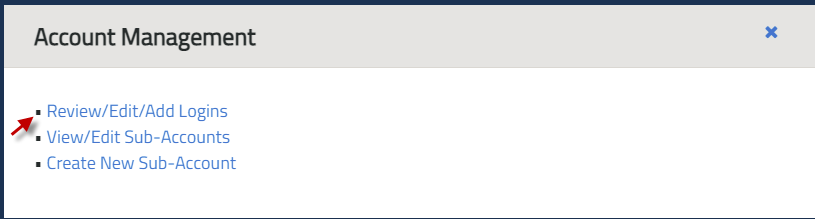
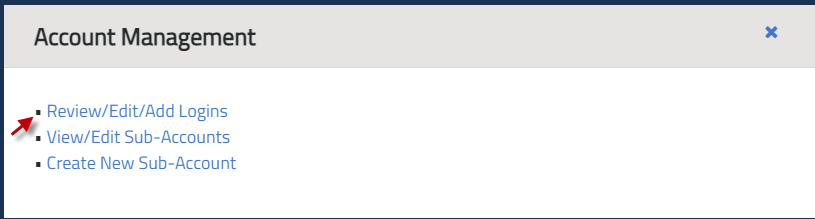
- In the Account Dashboard, go to the Account Management module and click the ‘Review/Edit/Add Logins’ hyperlink as shown below:
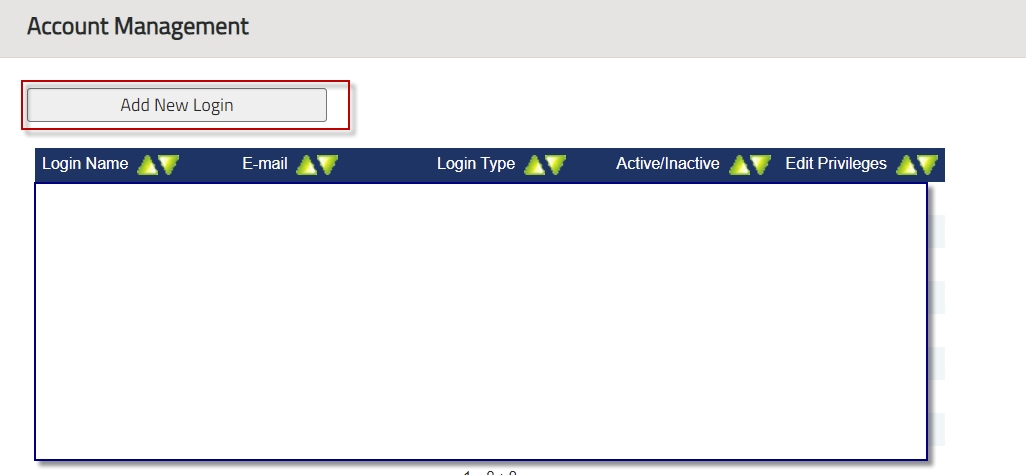
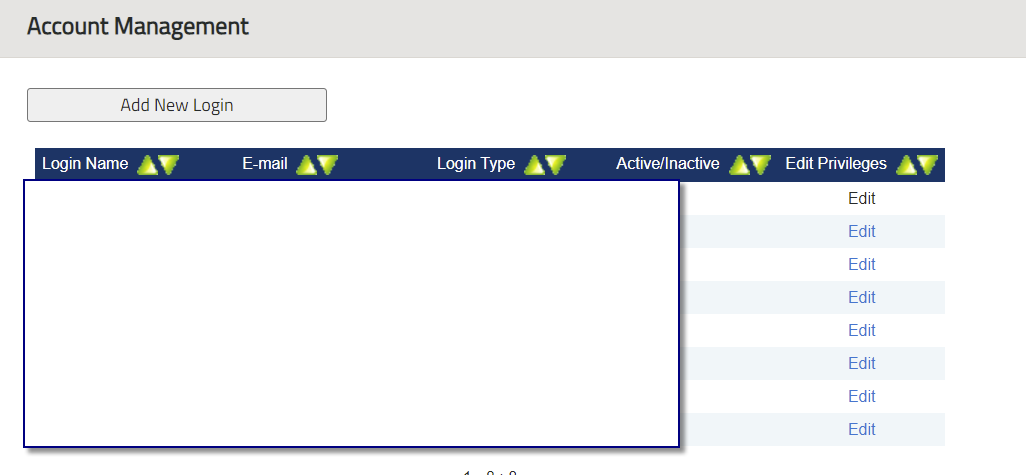
- In the Account Management screen, click the ‘new’ button.
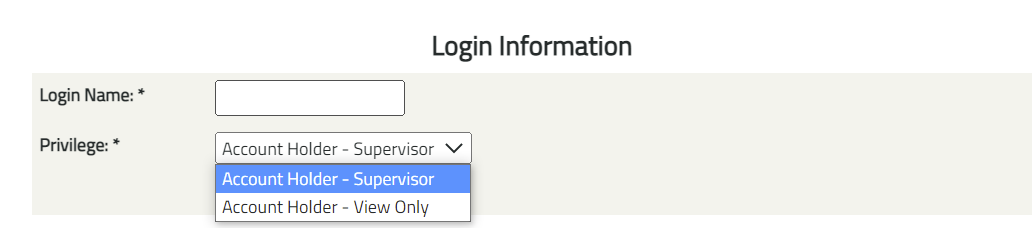
- In the Login Information screen, enter data into the fields on the form and designate login privilege for additional users.
Privilege Description
- Account Holder – User is permitted to register projects and manage certificates.
- Account Holder - View Only – User is only permitted to view account reports.
- Click the OK button to create the new login.
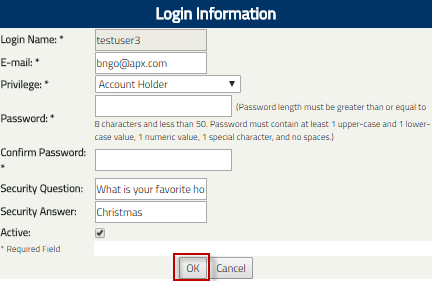
Note: New users will be prompted to change the password after initial login after logging in with the password provided by the TIGR-Specific Contact.
Deactivate Login
- In the Account Dashboard, go to the Account Management module and clicks the ‘Login Management’ hyperlink as shown below:
- In the Account Management, click the ‘Edit’ hyperlink for a login.
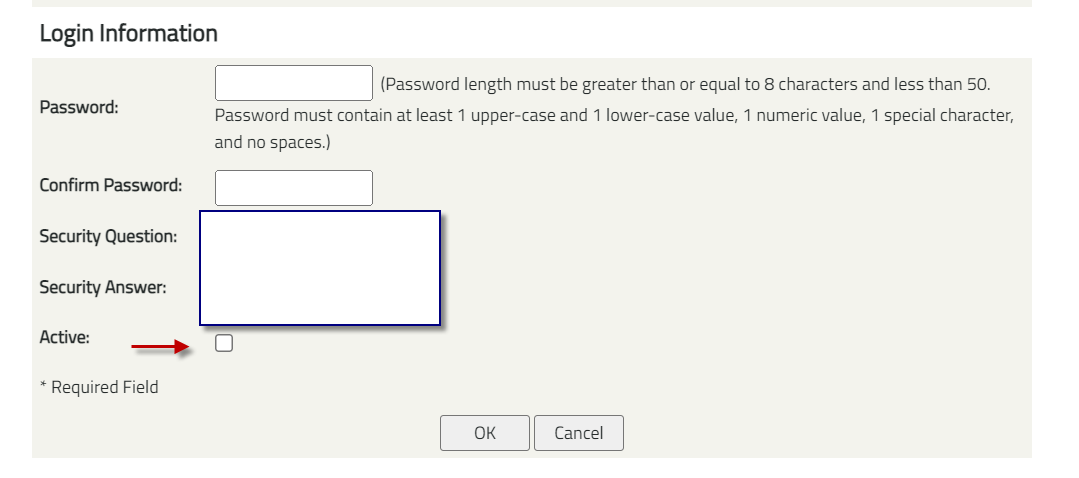
- In the Login Information screen, uncheck the ‘Active’ checkbox.
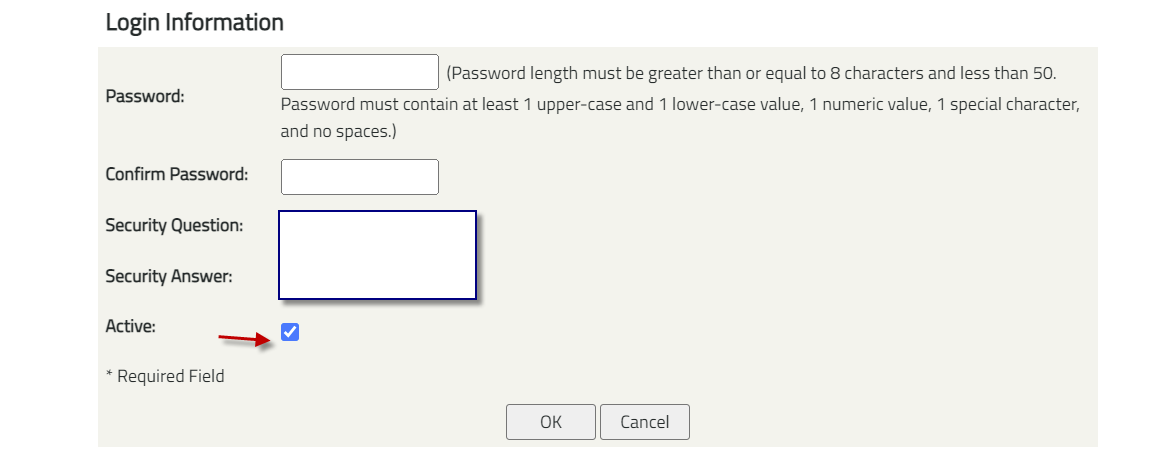
- Enter in a new Password and Confirm Password. Then, click the ‘OK’ button to deactivate login.